How to set up the schedule feature
ℹ️ Information
Please note that this is an advanced feature, so if you require any support, please get in touch.
Schedule Feature
- Open the Lightbug Web Portal
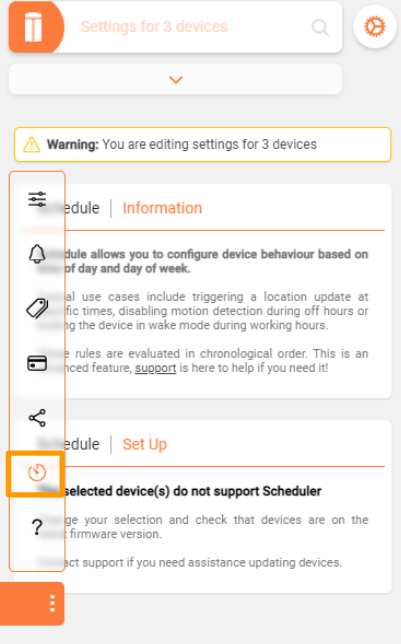
- Go to
'Settings', then to the'Schedule'page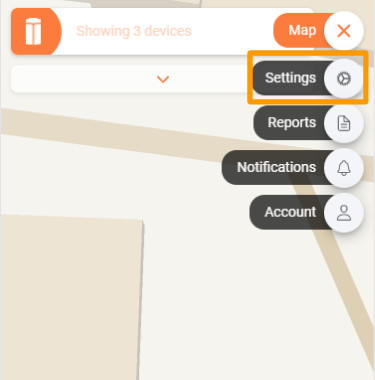
- Click on
'ADD RULE'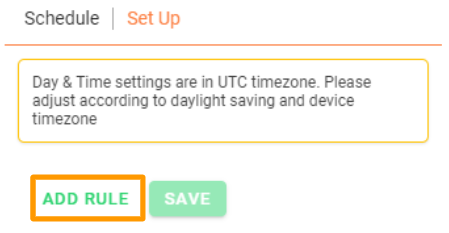
- Enter the
day, time and frequencythat the action will take place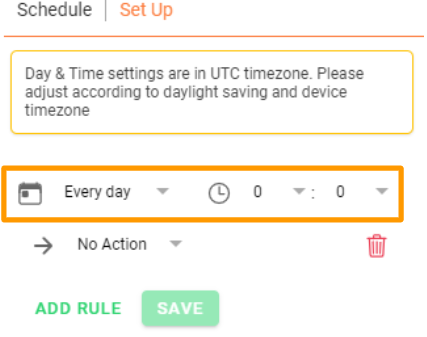
- Select an
action. Your tracker will perform this action on the selected time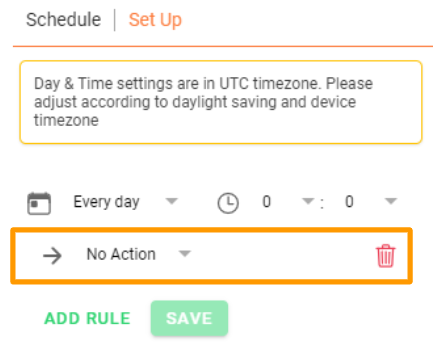
- Add the
rule, and create additional rules if required. When finished,save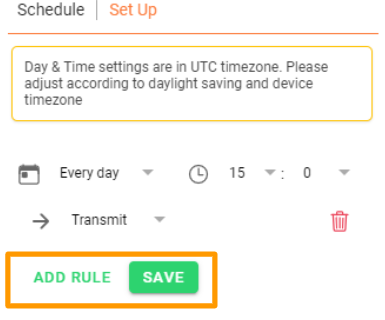
No Action: The tracker will do nothing. This action is here as a placeholder if you want to disable rules without deleting them.
Sleep: This will lock the tracker in sleep mode. This means that it will transmit only on beacon interval. You can find and adjust the beacon interval on the Configuration page.
Wake: This will lock the tracker in wake mode. This means that it will transmit on interval. This action is not suited for most use cases as it can drain the battery faster.
Transmit: The tracker will send one update at the specified time. This action does not affect any of your tracker's update rate settings.
⚡ Tip
Rules are evaluated in order.
Examples
Wednesday 8am Wake, Wednesday 4pm Sleep On Wednesday you will receive frequent updates between 8am-4pm. The rest of the time you will receive sleep updates.
All days 9am Transmit now You will receive a location update at 9am everyday. This is in addition to any location updates sent due to your trackers settings.
A Few Things To Note
Settings are automatically saved and will be applied at the next location update. Alternatively, to apply the new settings immediately, press the button on your tracker for 3 seconds These rules will override motion detection and geofence.
This feature can be a little complicated to set up, so if you have any hesitations, please reach out to us.